5. Service Catalog
Set this up once and you stop rebuilding the same service for every customer. Your account already comes with a starter catalog, so nothing here starts from an empty page.
5.1 Repeating services
A repeating service is one a customer is signed up for on a schedule — the weekly or monthly work that makes up most of your round. In the app these are called Recurring Billing Items.
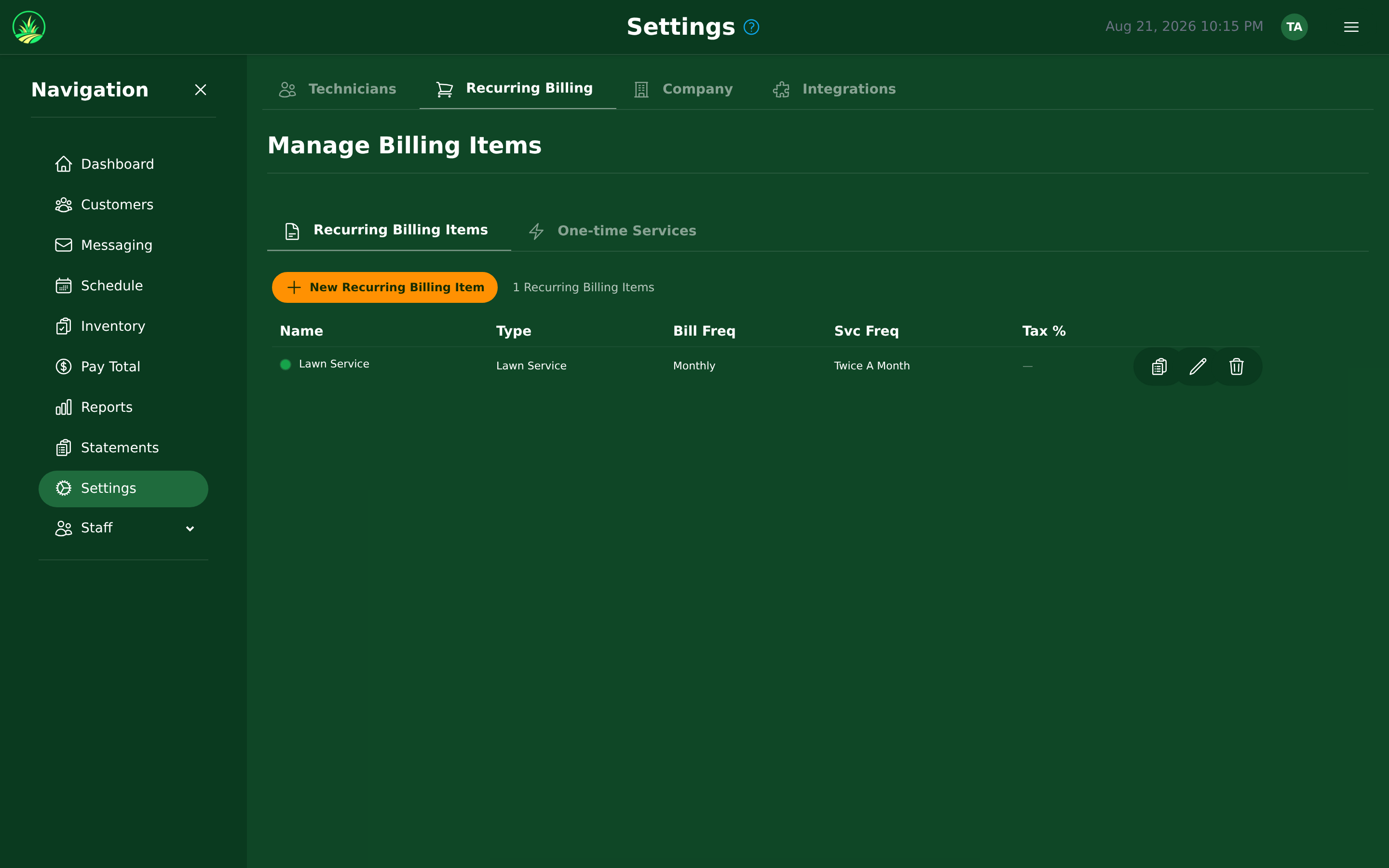
To create one, go to Settings > Recurring Billing and click New:
| Field | What it means |
|---|---|
| Name | What you and the customer call it (for example, "Weekly Mowing") |
| Service Type | The category it belongs to — see 5.2 |
| Price | What you charge |
| Tax Rate | Sales tax to add, if any |
| Billing Frequency | How often the customer is charged — see Section 6 |
| Billing Cycle Mode | Calendar month, or counted from the customer's start date |
| Proration | What to charge when someone starts partway through a period |
| Has Scheduled Visits | Whether this puts a stop on the calendar. Off means the service never appears on the calendar, whatever its billing frequency — use it for fees and other billing-only lines |
| Service Frequency | How often the lawn is visited (for example weekly), only when Has Scheduled Visits is on. It is separate from the Billing Frequency: a service can be visited weekly and billed monthly. This is the value new sales start with: each customer can get another Service Frequency, and a weekly service several visits a week, for that customer only — see Section 6. When you change it here and customers use the service, EZ Lawn Biller asks you to confirm: those customers keep their current Service Frequency and their visits, and new sales get the new one |
| Duration Override | How long this job takes, if it differs from the type's usual |
| Start Charging Offset | Days to wait before the first charge |
5.2 Service types
A service type is the category a service belongs to. It sets the default length of the job and the colour it shows in on the calendar, so you can read the week at a glance.
There is no separate Service Types tab. You edit types inside the service form — open a Recurring Billing Item, and the Service Type field lets you pick, add, or edit one on the spot.
5.3 One-time services
A one-time service is a job you sell once — no schedule, no repeating charge. These live under Settings > Recurring Billing > One-time Services.
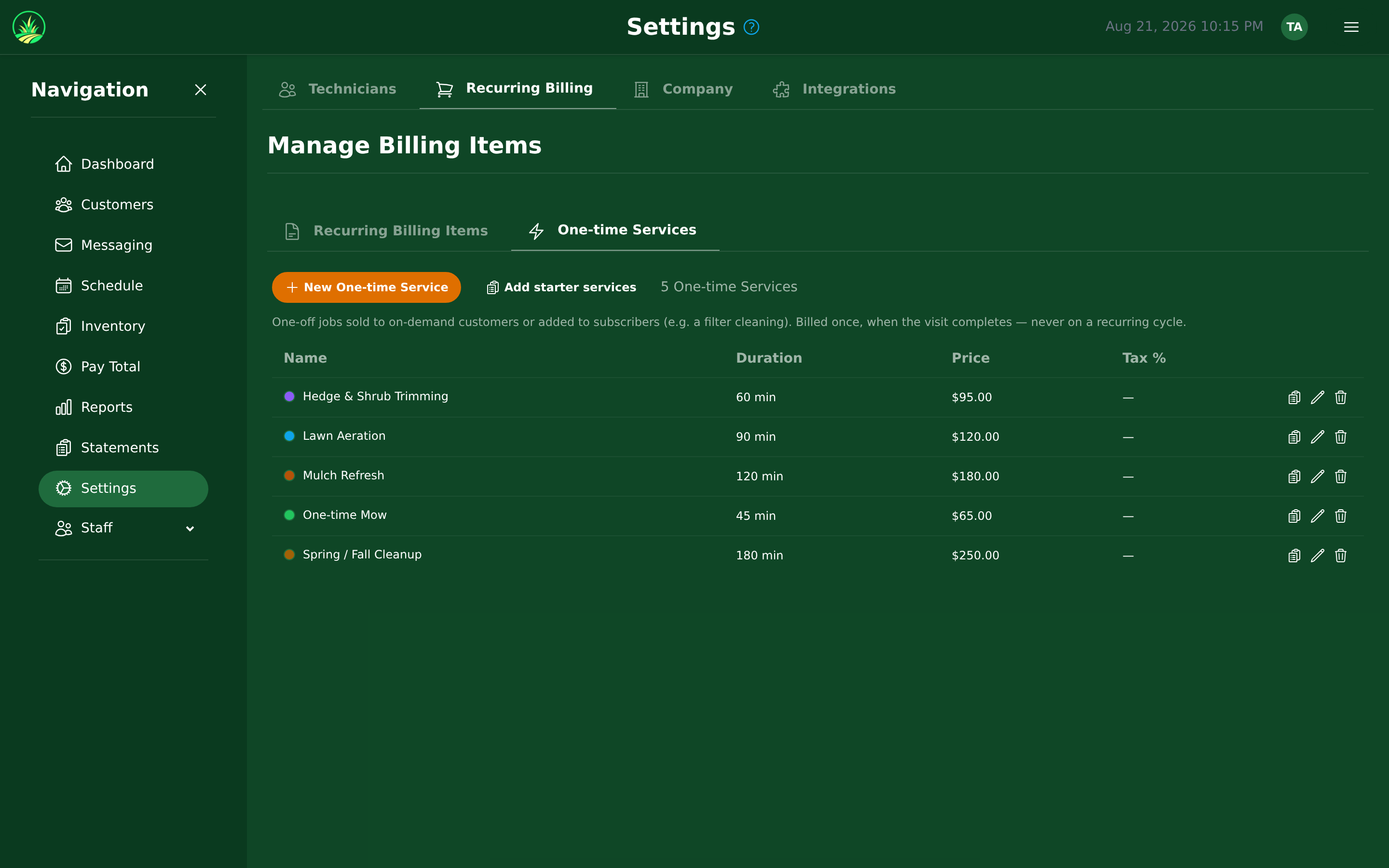
Each one carries its own price, how long it takes, and its own colour on the calendar, so a one-off job is easy to spot among the regular round.
Your account starts with a set of common jobs for your trade. They're listed in Section 8, along with how to sell one.
5.4 Checklists — what the technician is asked
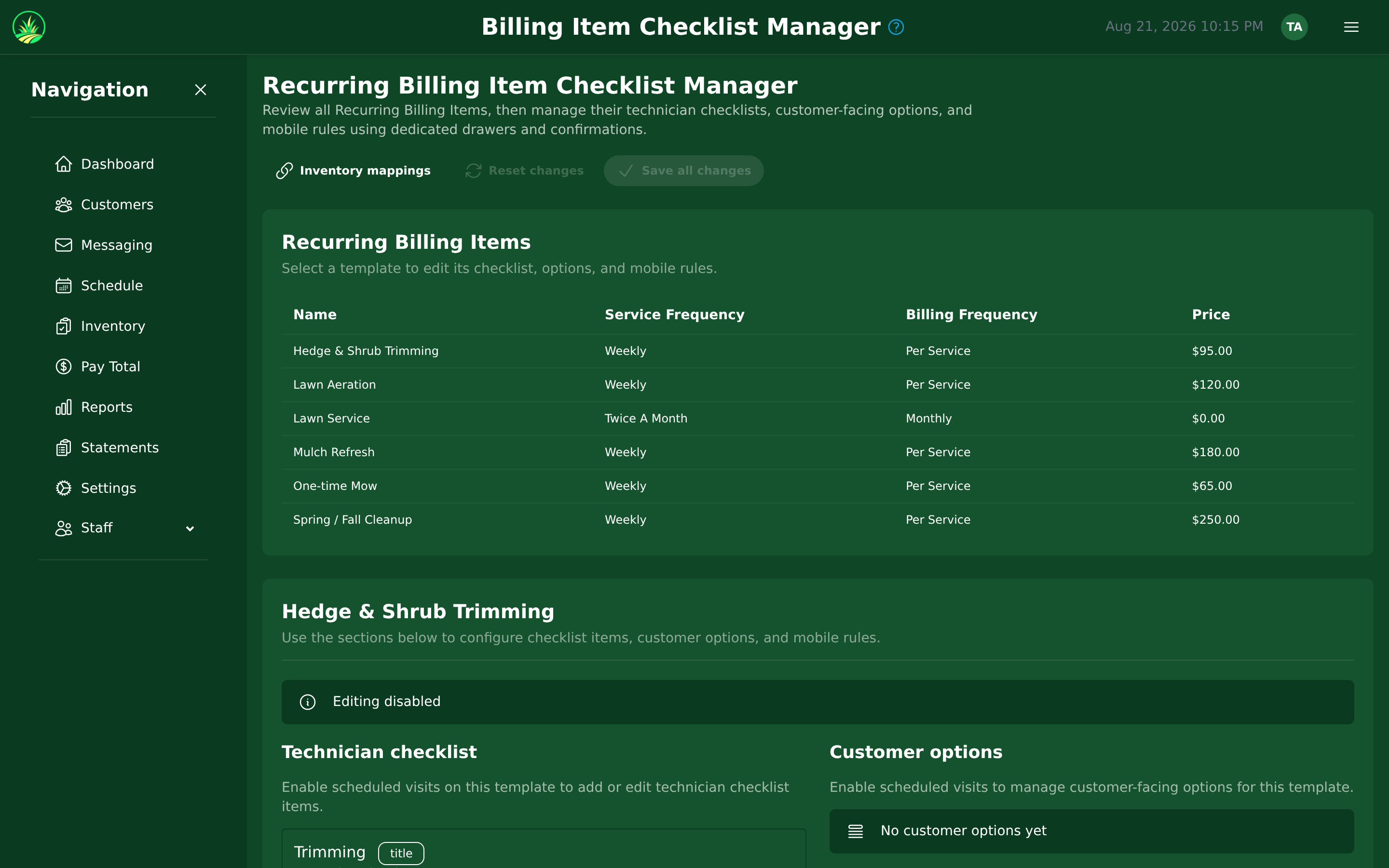
Every service can carry a checklist: what the technician fills in on their phone during the lawn service. It's also what feeds the customer's lawn service report.
To set one up:
- Open the service.
- Click the checklist icon on its row.
- Add the items you want recorded.
- Mark each one required or optional. Required items must be filled in before the technician can finish the job.
Checklists come already filled in, and they differ by the kind of job:
- Repeating services get the standard checklist for your trade. For a lawn that's which areas were serviced, the mowing height, any treatment applied, and notes.
- One-time services get a checklist matched to that particular job. An aeration job asks about the aeration, not the mowing height.
Here's what your starter repeating service asks for:
| Asks for | Kind |
|---|---|
| Areas serviced | tick any that apply |
| Mowing height (in) | a number |
| Fertilizer / treatment applied | pick one |
| Issues observed | notes |
If you edit a checklist and want the original back, use Restore default. It brings back the checklist for that job, not a generic one.
5.5 Inventory checklists
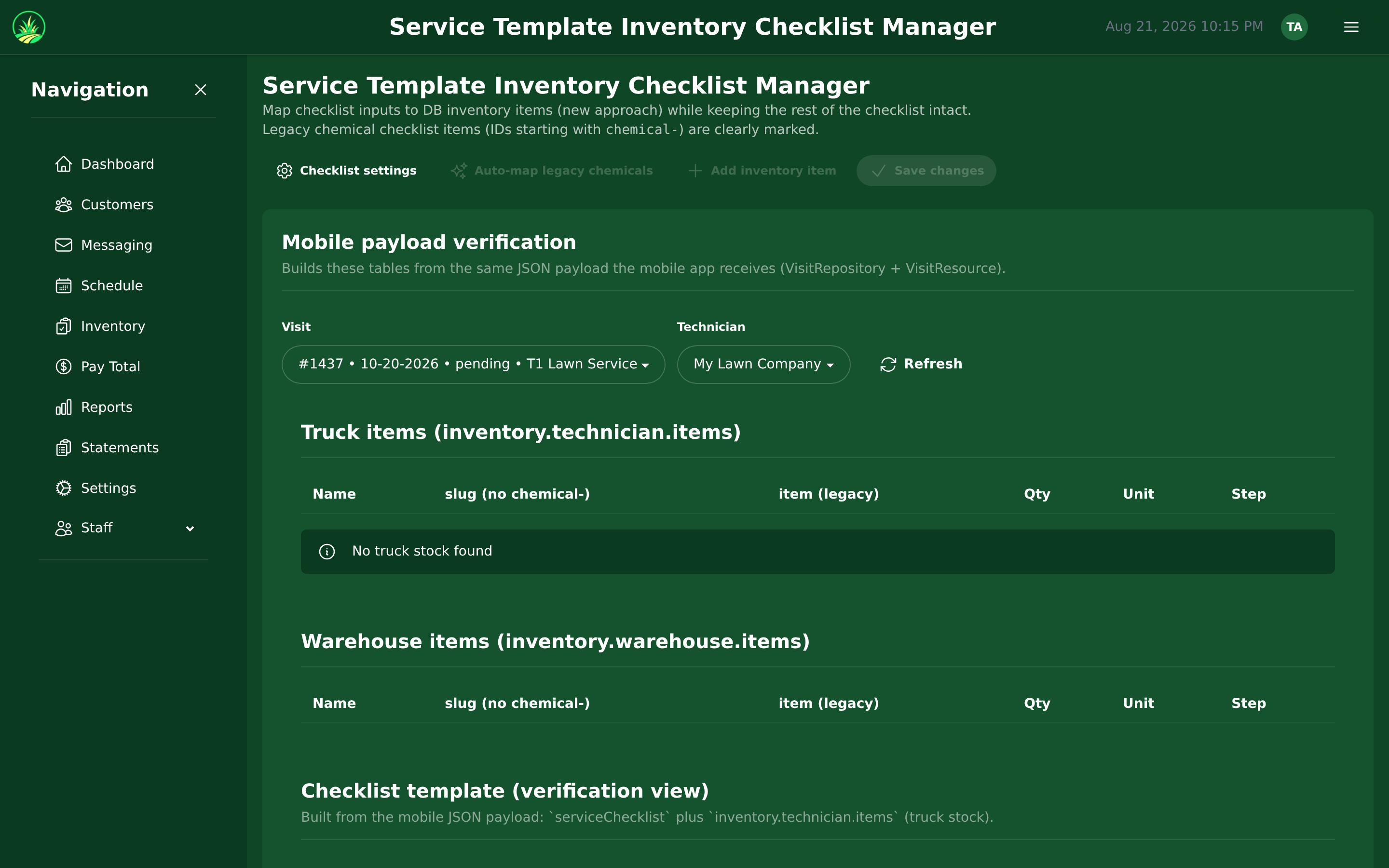
You can also tell a service which supplies it normally uses — for example, "Fertilizer — 2 lb". When the technician finishes the job, that stock comes off the truck automatically. See Section 11.
5.6 Packages
A package is a subscription with more than one item: for example your weekly lawn care plus a monthly equipment rental, or a filter clean every six months on top of the regular service. There's no separate package to build. You put the items together on the customer's subscription, so every customer can have their own mix.
When you create the subscription: in the wizard (6.1), pick every item you want in the billing items list. Each item keeps its own price, billing frequency and first charge date, so a monthly service and a twice-a-year extra can sit on the same subscription. The preview shows what each one will charge.
On a subscription the customer already has:
- Open the customer, then Billing > Recurring Billing.
- Click Add Item on the subscription.
- Choose the service, and set the Price, Tax Rate, Billing Frequency, Quantity and Start Date.
- Click Add Item.
Each item is charged on its own schedule and shows as its own line on the statement. Pausing or canceling the subscription applies to all of its items.